When a customer meeting ends, much of the work is still ahead. Someone needs to work out what we actually agreed, what is still open, and who will do what. Then it needs to go into the CRM, and the customer needs a follow-up that reflects the conversation.
That is one of the workflows I have built AI agents around. I have also made a home page that brings together meetings, follow-ups and work that needs attention. Behind it is a system overview showing how jobs relate to each other, what is scheduled and which runs have been recorded.
Here I want to show how it fits together: what the agents do, what regular code does, and what I still need to decide myself.
The screenshots are anonymized, static excerpts of my actual interface, captured on 29 October 2026. Identifying text has been replaced and some rows omitted. Numbers and statuses reflect the time of capture. This is a walkthrough of the setup, not a live view of current operations.
The videos have English narration and subtitles. The interface shown is in Norwegian.
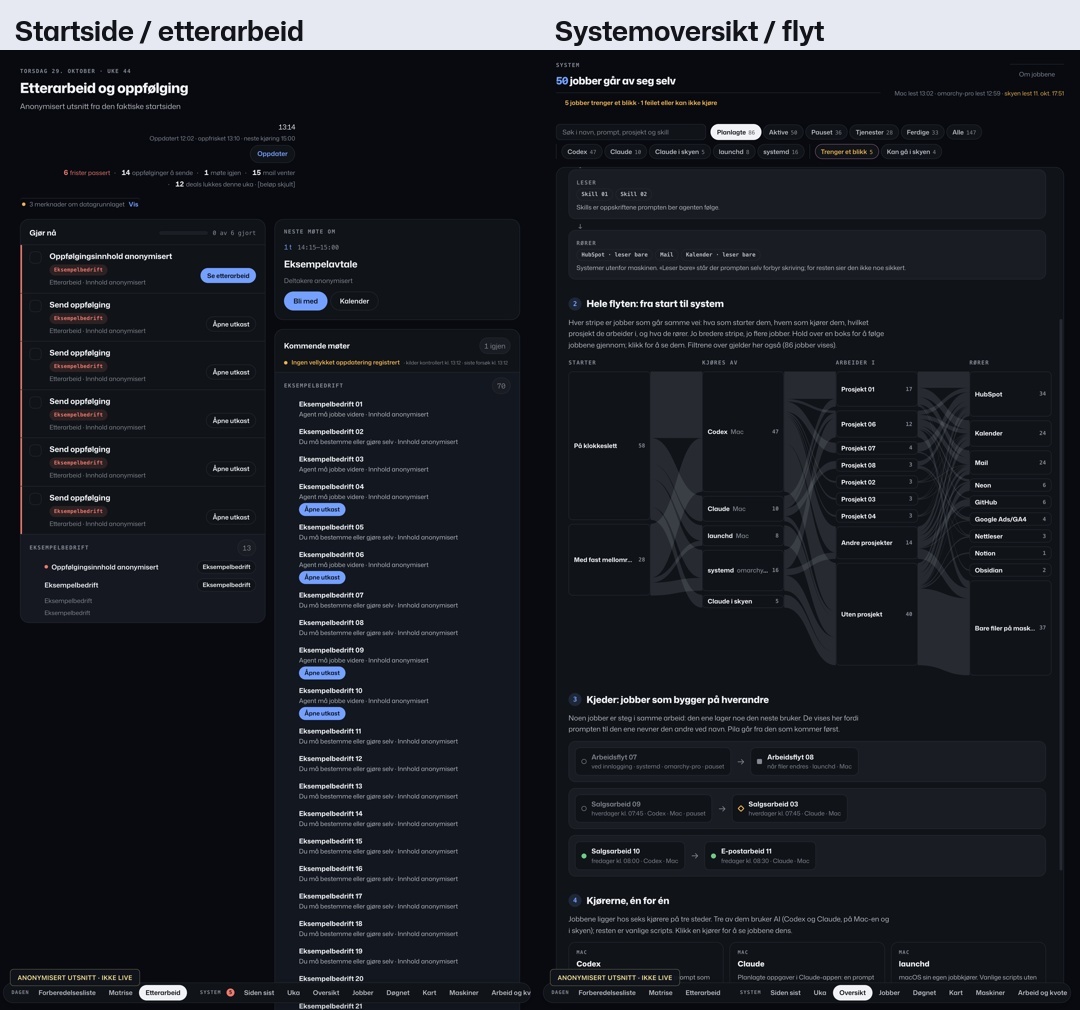
1. The home page starts with what I need to do
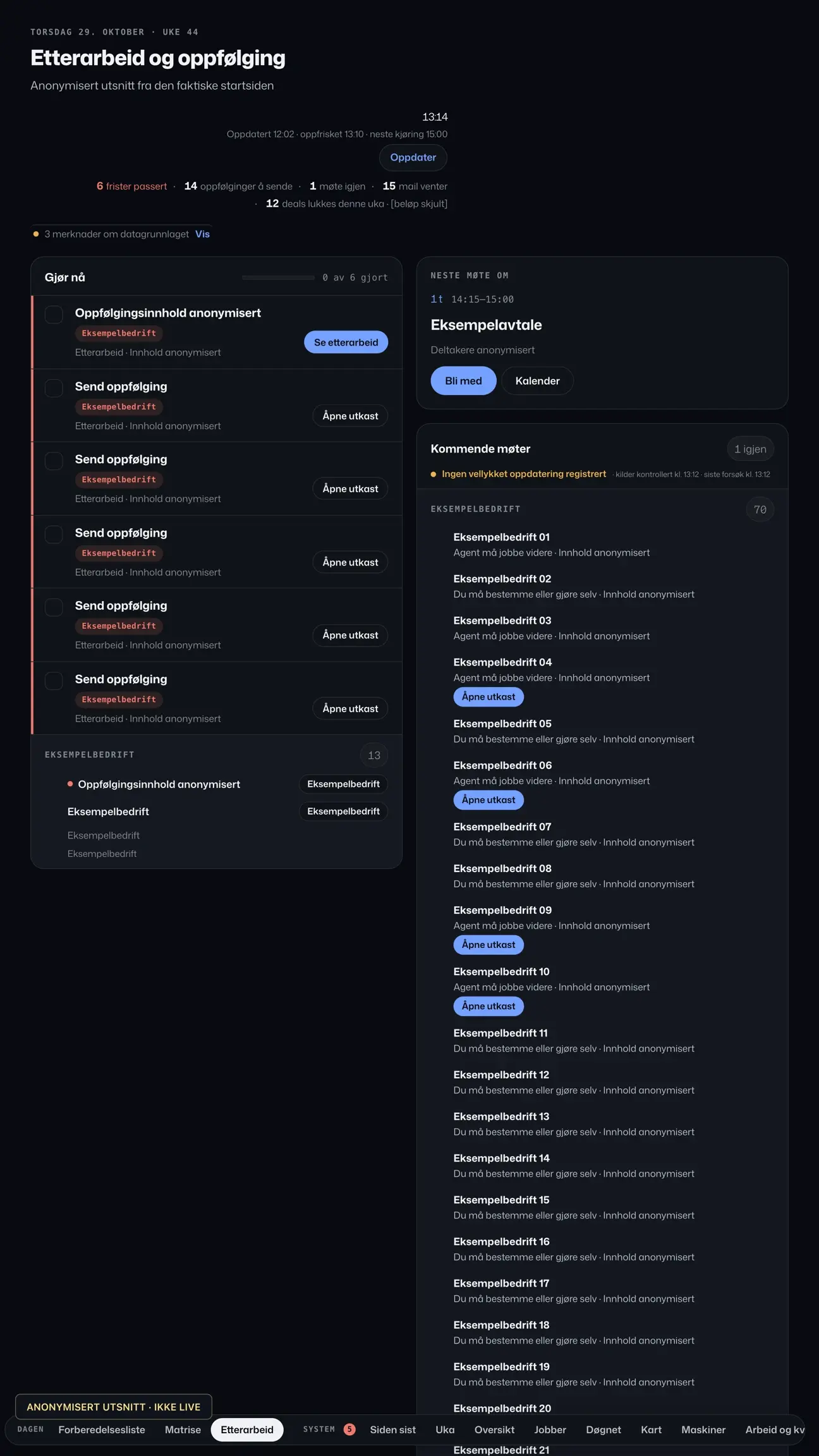
On my home page I can see the next meeting, tasks that need action and post-meeting work that is waiting. It is a practical starting point: what do I need to deal with now, and where can I find the source material?
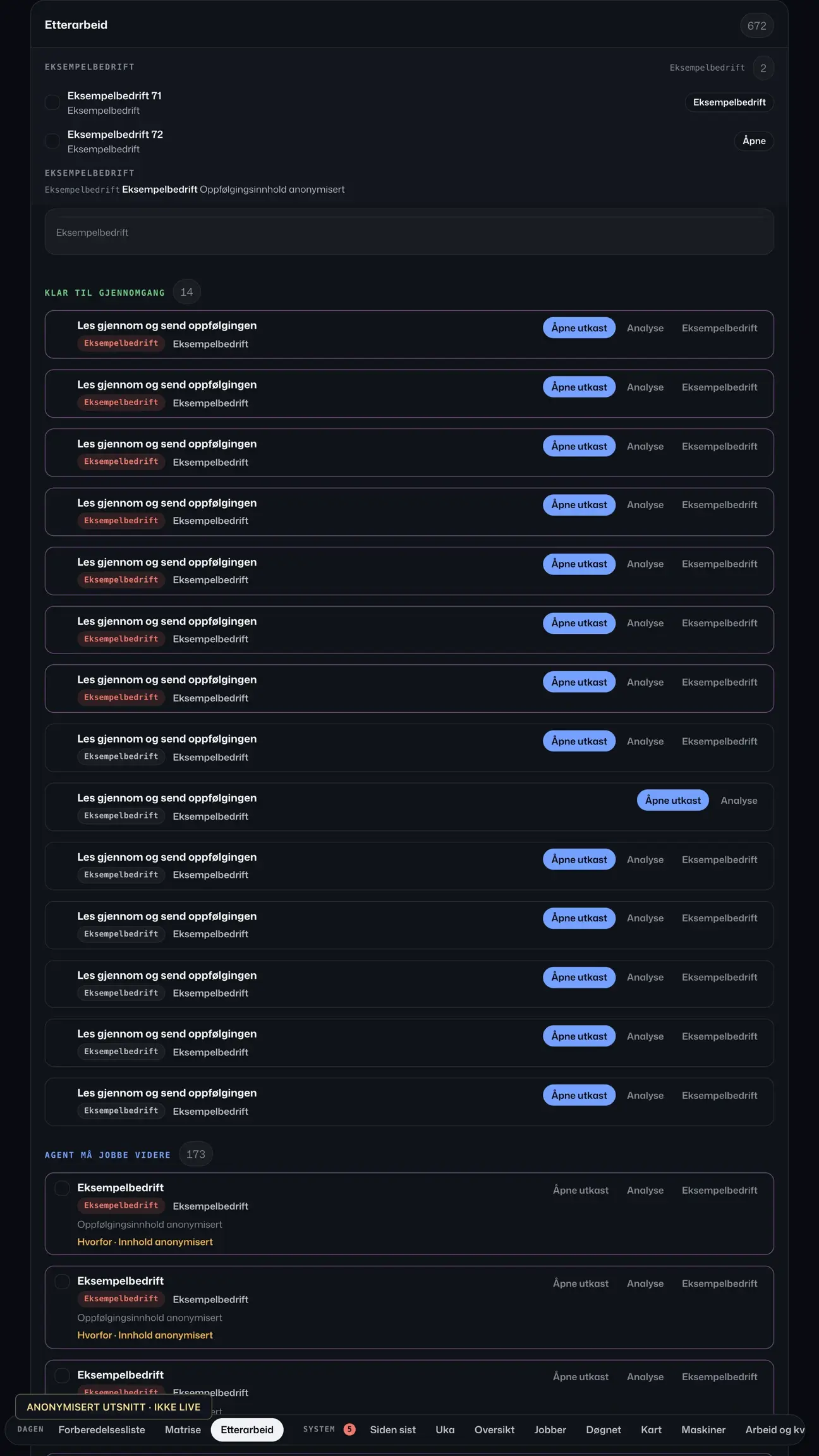
Take a follow-up after a meeting. A summary of the conversation is useful, but it does not tell me whether the customer has received a response. So I need to distinguish between an analysis being complete, a draft being ready, and the follow-up actually being sent.
Those statuses mean different things. If they are mixed together, a tidy overview can make me think a task is done when it is still waiting for me.
The home page shows work across tools. The analysis and creation of drafts happen elsewhere in the system. A card on the screen is an entry point to the work and its status.
Watch: My home page · 25 seconds
2. Let’s follow one meeting through the system
The easiest way to understand the setup is to follow one workflow. This is the documented process for post-meeting work after a sales meeting.
When a transcript becomes available in HubSpot, a webhook or a periodic check can pick it up. The system first needs enough text to work with. An empty or overly short transcript should mean waiting, not a completed analysis based on guesses.
Codex then produces the analysis. That becomes part of the source material for the next step: drafting the follow-up.
In this workflow, Claude receives a bounded source package and writes structured text. Claude does not perform its own lookups or external actions at this step. Regular code handles the lookups, checks whether something already exists, and creates an unsent Gmail draft and a HubSpot note when the checks allow it.
After creation, the code reads the content and status back. It checks, among other things, the recipients and whether the email is still a draft. The note is also checked against its content and associations with the company and open deals.
That gives me something concrete to review. I still need to judge whether the follow-up reflects what the customer meant, whether a caveat has been preserved, and whether the next step is right. Saving text in the right place does not automatically make it correct.
Watch: After the meeting · 25 seconds
Watch: From transcript to draft · 29 seconds
3. The agents have different jobs
In the meeting workflow, the division of work is clear: Codex analyzes, Claude writes from the source material, and code handles lookups and delivery. I review the result and decide what to send.
That division also helps me troubleshoot. If a draft is missing, I need to know where the process stopped. Was the transcript available? Was the analysis completed? Was the recipient unambiguous? Was there already a draft that needed review?
Each step has its own responsibility and status. The analysis can be complete while the follow-up work remains open.
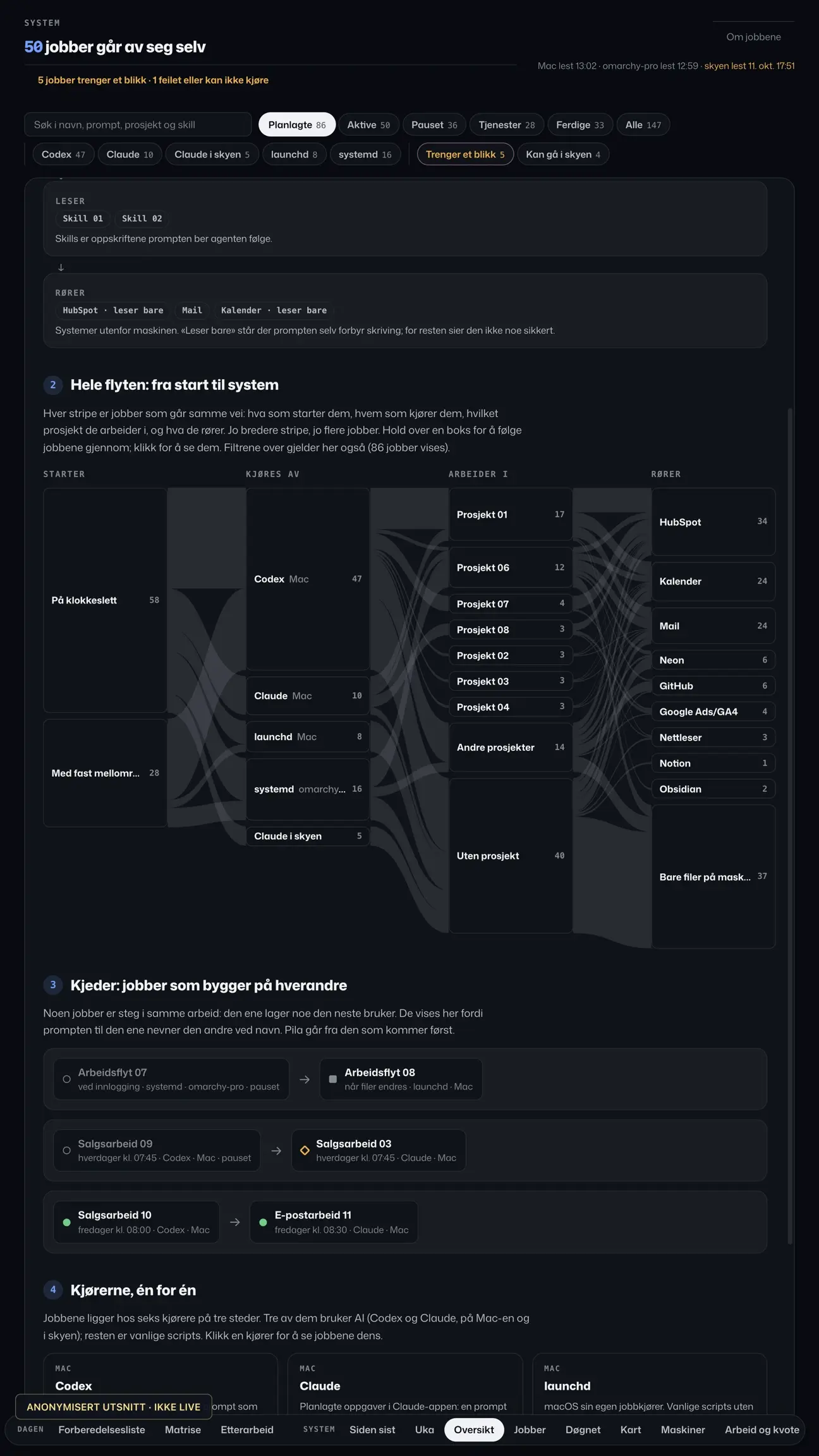
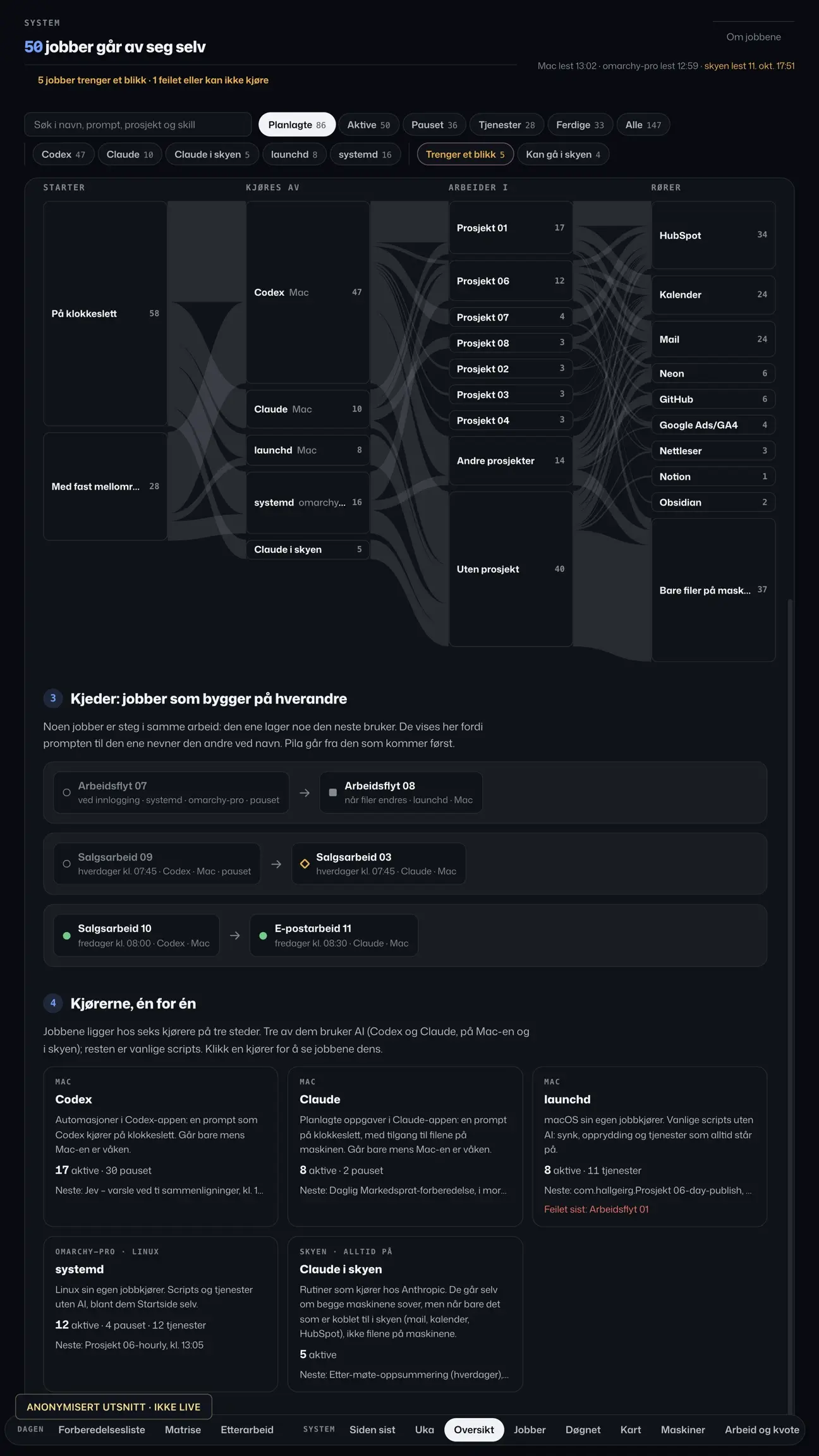
The system overview also shows the wider picture: what starts a job, which runner executes it, which project it belongs to, and which systems it touches. The chain view shows connections based on which other jobs a prompt mentions. It gives me leads to investigate; I still need to check whether a result was actually passed on.
This is a part of the setup I find particularly interesting to show. You can follow connections between tasks instead of reading a collection of separate instructions and guessing how they fit together.
Watch: Who did what? · 24 seconds
4. The day view shows what was scheduled and what was recorded
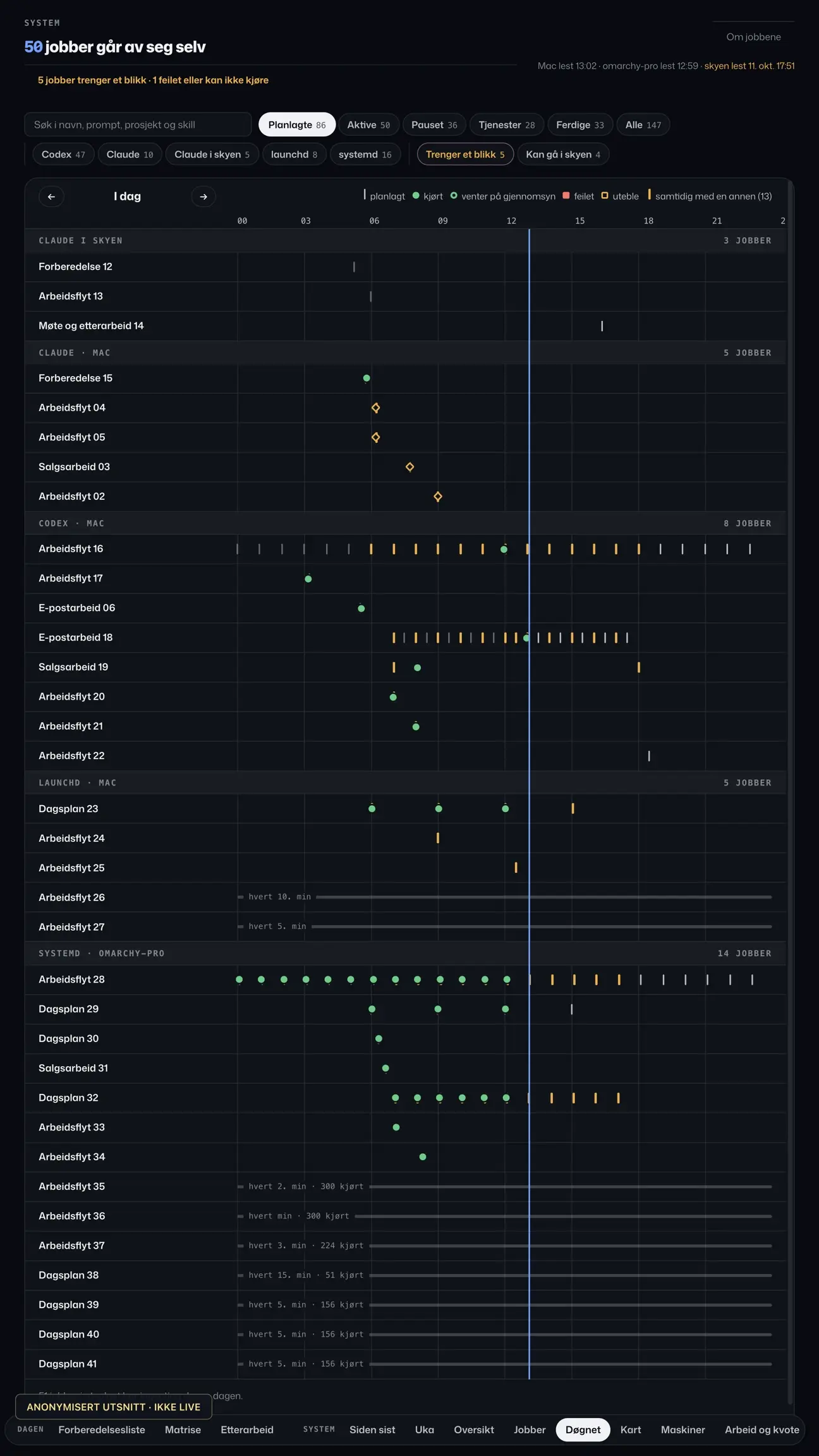
When several jobs run at different times, I also need an overview of operations. I find that in a view called Døgnet.
Each job has its own row. A line represents a scheduled run, a dot represents a recorded run, and a square represents an error. I can look for differences between the plan and what the system recorded.
That distinction matters. A job appearing on the schedule does not tell me it ran. And a run alone does not tell me its result can be used.
The overview has limits. History and run logs are available to different degrees for different runners. A missing dot is therefore a place to start investigating, not certain proof that nothing happened.
I want to be able to go to the right job and see what it actually reported. The timeline helps me find where to look.
Watch: The day at a glance · 24 seconds
5. I use rules where rules are enough
Not everything in the setup is AI. The daily plan can collect information and prioritize using fixed rules. AI can be used for wording and ordering, among other things, but is an optional part of that process.
A rule can, for example, pick up relevant meetings and flags that need attention. That is a different task from interpreting what a customer meant in a conversation.
Keeping the two apart helps when something goes wrong. A model can draw a poor conclusion. A rule can be configured incorrectly. Both can work from old or incomplete data. I need to see which sources sit behind the output and how fresh they are.
If an overview is based on yesterday’s information, it needs to be treated accordingly. A well-worded answer does not make the data any fresher.
Watch: Rules and AI · 23 seconds
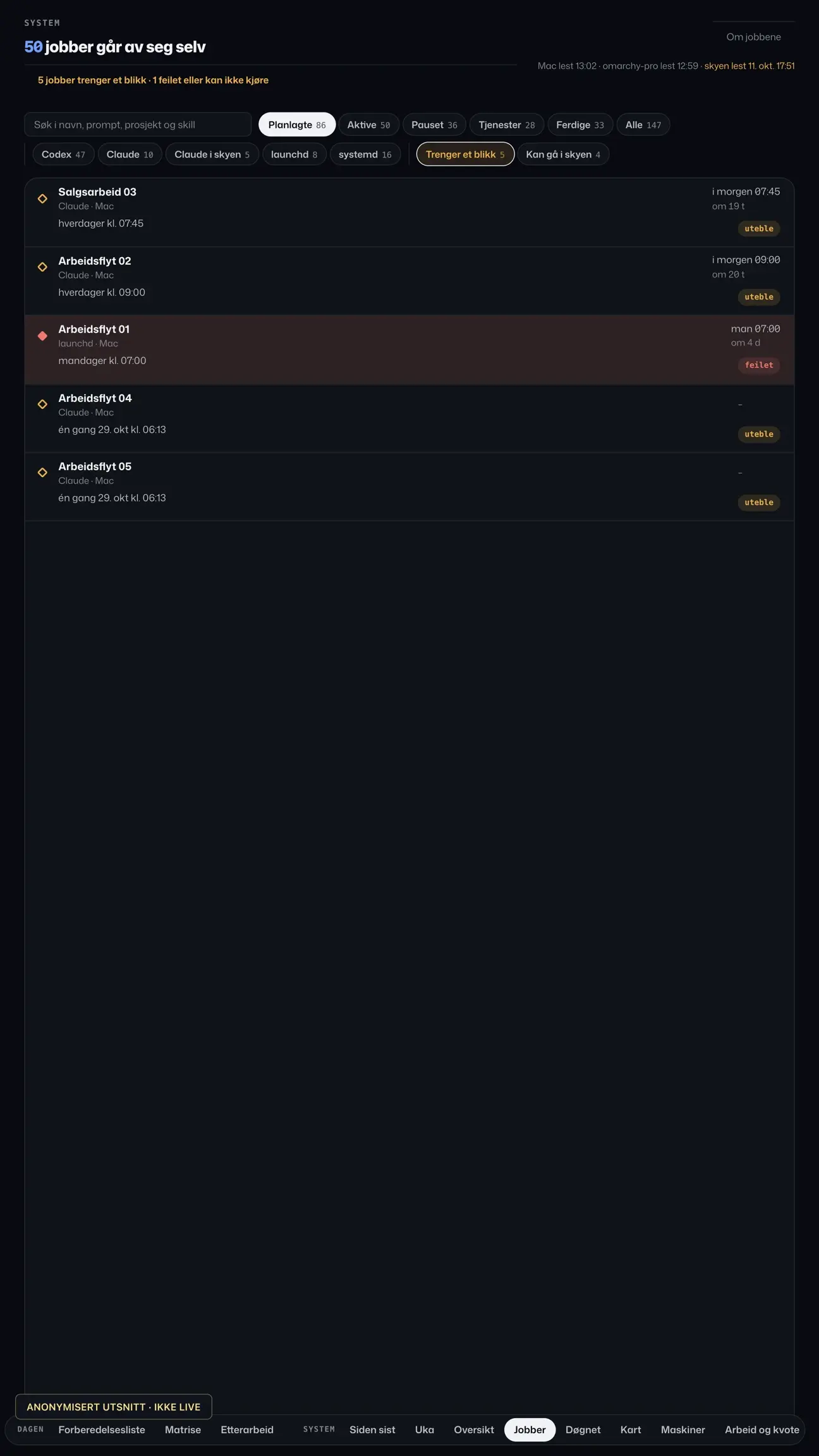
6. Errors and missing information need to stay visible
There are more possible outcomes than complete and incomplete. A job may be waiting for a transcript. It may be blocked because the link to the right company is unclear. Or it may have produced the analysis but stopped before creating the draft.
That changes what I need to do next. Missing information needs to be obtained or clarified. An existing draft needs review. A technical error needs investigation before I decide whether to try again.
I do not want the system to hide those differences to look tidier. Warnings about old data and jobs that need a look belong in the overview.
That is also why I show those parts here. A walkthrough of how I use AI needs room for what stops and how I notice it.
Watch: When a job stops · 25 seconds
7. The follow-up is still my action
In the meeting workflow described here, the system prepares a draft. It does not automatically send the follow-up, change the calendar or move a deal to a new stage.
I need to open the draft, review it and choose what happens next. Commercial responsibility does not disappear because a model has written a suggestion.
For that review to be useful, I need access to the source material and what remains uncertain. Otherwise approval can quickly become a click on text that looks convincing.
This is a principle I bring to AI for businesses (page in Norwegian): decide what job the system should do, and what a person needs to see to take responsibility for the next action.
Watch: What can the agents do? · 24 seconds
8. What can you take from this?
You do not need to build my home page to use this approach. Start with a task that already recurs, and follow it all the way until it is actually resolved.
A meeting is a useful example. Where does the source material come from? What needs to be analyzed? Where should the follow-up sit? Who checks it, and how do you know it has been sent?
That makes it possible to choose where AI can contribute, where a fixed rule is enough, and where a person needs to decide. It also gives you something concrete to check when the workflow stops.
For me, the home page and the agents connect through those transitions. I want to see the work, understand its status and find the next action. That is what the system is built around.
If this resembles something your team is trying to sort out, you can read more about digital workflows and HubSpot (pages in Norwegian). Or get in touch about one concrete workflow you want to improve (contact page in Norwegian).